Table of Contents
WordPress's default media library works fine when you have a few dozen images. But as your site grows to hundreds or thousands of media files, finding what you need becomes increasingly difficult.
Folder plugins solve this problem by letting you organize media files into a hierarchical structure—similar to how you organize files on your computer. But with several options available, choosing the right one depends on understanding what features actually matter for your workflow.
This guide walks you through the key considerations, explains the differences between available options, and helps you make an informed decision.
Disclosure: This article is published by the Lens team. We've done our best to present accurate, fair information about all options including our competitors. We encourage you to verify features on each plugin's official website before making a decision.
Skip to VerdictPart 1: Understanding the Basics
What Folder Plugins Actually Do
WordPress doesn't natively support organizing media into folders. When you upload an image, WordPress stores it in date-based directories (like /wp-content/uploads/2025/12/) and tracks it in the database. You can't change this structure or create custom folders without a plugin.
Folder plugins add a sidebar or panel to your media library that lets you create folders, drag files into them, and browse by folder. Most plugins work "virtually"—they don't actually move your files, they just add organizational metadata.
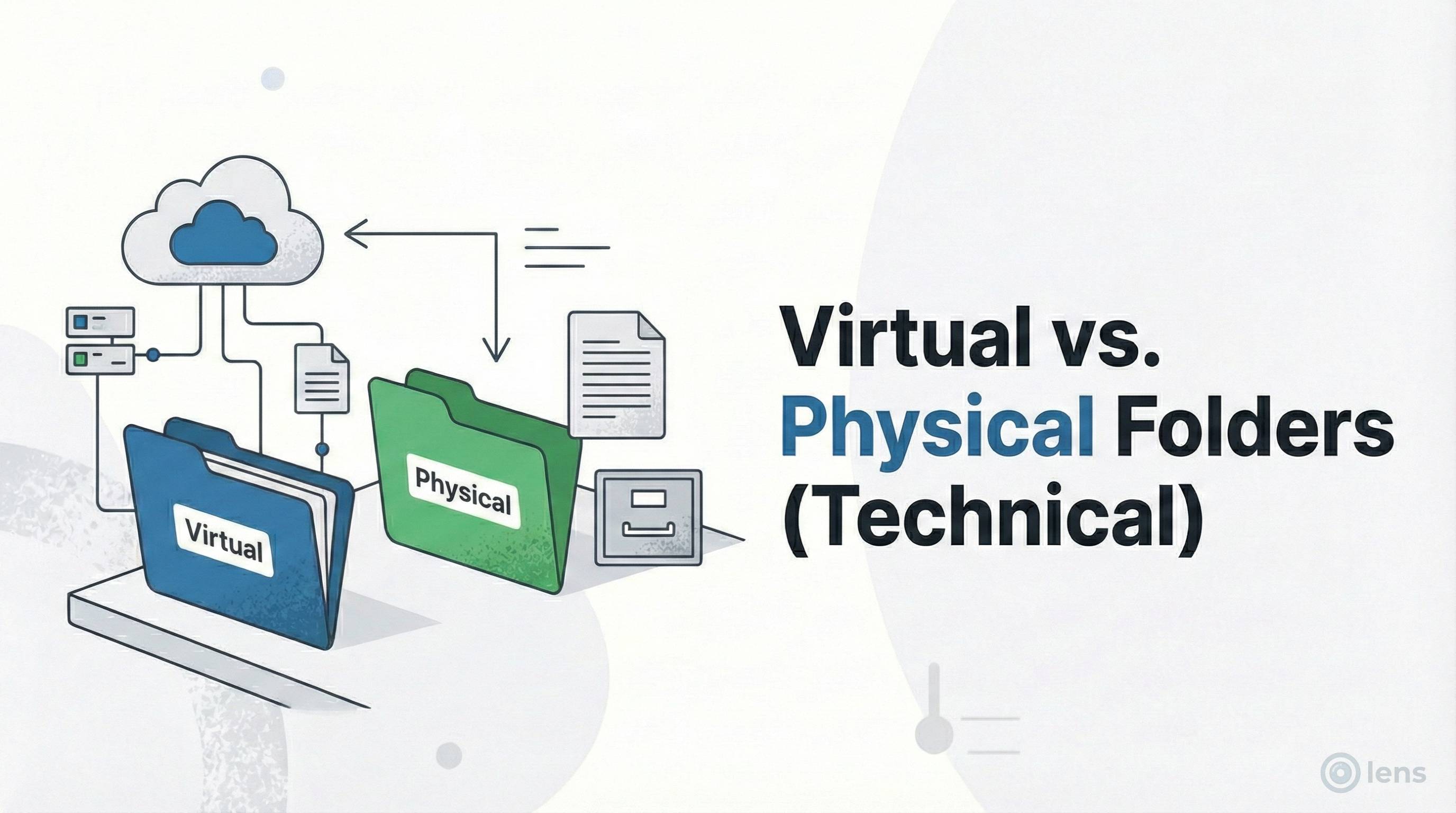
Virtual vs. Physical Folders: Why It Matters
This is the most important concept to understand when choosing a folder plugin:
Virtual Folders (Recommended)
- Create organizational categories in the database only
- Your actual files stay in their original locations
- Image URLs never change
- Safe to uninstall—your site continues working normally
- No risk of broken images or SEO issues
Physical Folders (Use with Caution)
- Actually move files to new server directories
- Change your image URLs when reorganizing
- Can cause broken links if not handled carefully
- Uninstalling may leave files in non-standard locations
- Potential SEO impact if URLs change without redirects
Tip: All major folder plugins today use virtual folders. If you encounter a plugin that moves your actual files, proceed with caution and ensure it handles URL updates properly.
How Folder Plugins Affect Performance
A common concern is whether folder plugins slow down your website. Here's what you need to know:
- Front-end (visitors): Virtual folder plugins have zero impact on your public website speed. The organization data is only used in the admin area.
- Back-end (admin): Plugin performance varies when loading and navigating large media libraries. Some plugins handle 10,000+ files smoothly; others may feel sluggish.
- Database: Folder plugins add custom tables or taxonomy entries. Well-coded plugins keep this minimal and optimized.
Part 2: Features That Matter
Not all folder plugins are created equal. Here are the features worth considering based on different use cases:
Essential Features (Most Users Need These)
1. Unlimited Folders and Subfolders
Some plugins limit the number of folders you can create in free versions. For any serious website, you'll want unlimited folders. Many plugins now offer unlimited main folders for free, but may restrict subfolders (nested folders) to paid versions.
2. Drag-and-Drop Interface
The ability to drag files into folders and rearrange folder order is fundamental. All major plugins support this, but the smoothness varies. Test how it feels with your actual library size.
3. Bulk Operations
Moving files one by one is tedious. Look for plugins that let you select multiple files and move them together. Some plugins also support bulk delete, bulk assign to folders, and similar operations.
4. Search Within Folders
As your library grows, you'll want to search within a specific folder rather than your entire media library. Not all plugins support this well.
Advanced Features (Power Users)
5. Auto-Organization
Some plugins can automatically sort existing files into folders based on criteria like upload date, file type, or other metadata. This is valuable if you're starting with an already-messy library.
6. Post Type Support
Beyond media files, some plugins let you organize posts, pages, WooCommerce products, and custom post types into folders. This is helpful for sites with hundreds of blog posts or products.
7. User Permissions
On multi-author sites, you may want to control which users can see, create, or modify folders. Some plugins offer role-based or user-specific permissions.
8. Import/Export
The ability to migrate your folder structure between sites or back it up can save hours of work.
Specialized Features
9. Folder Sharing and Collaboration
For teams or client work, some plugins allow sharing specific folders externally or tracking who accessed what.
10. Folder Locking
Password protection or hiding folders from certain users can be important for sensitive media.
11. ZIP Compression
Some plugins let you download entire folders as ZIP files or extract uploaded archives directly.
12. Keyboard Shortcuts
Power users appreciate the ability to navigate and manage folders without touching the mouse.
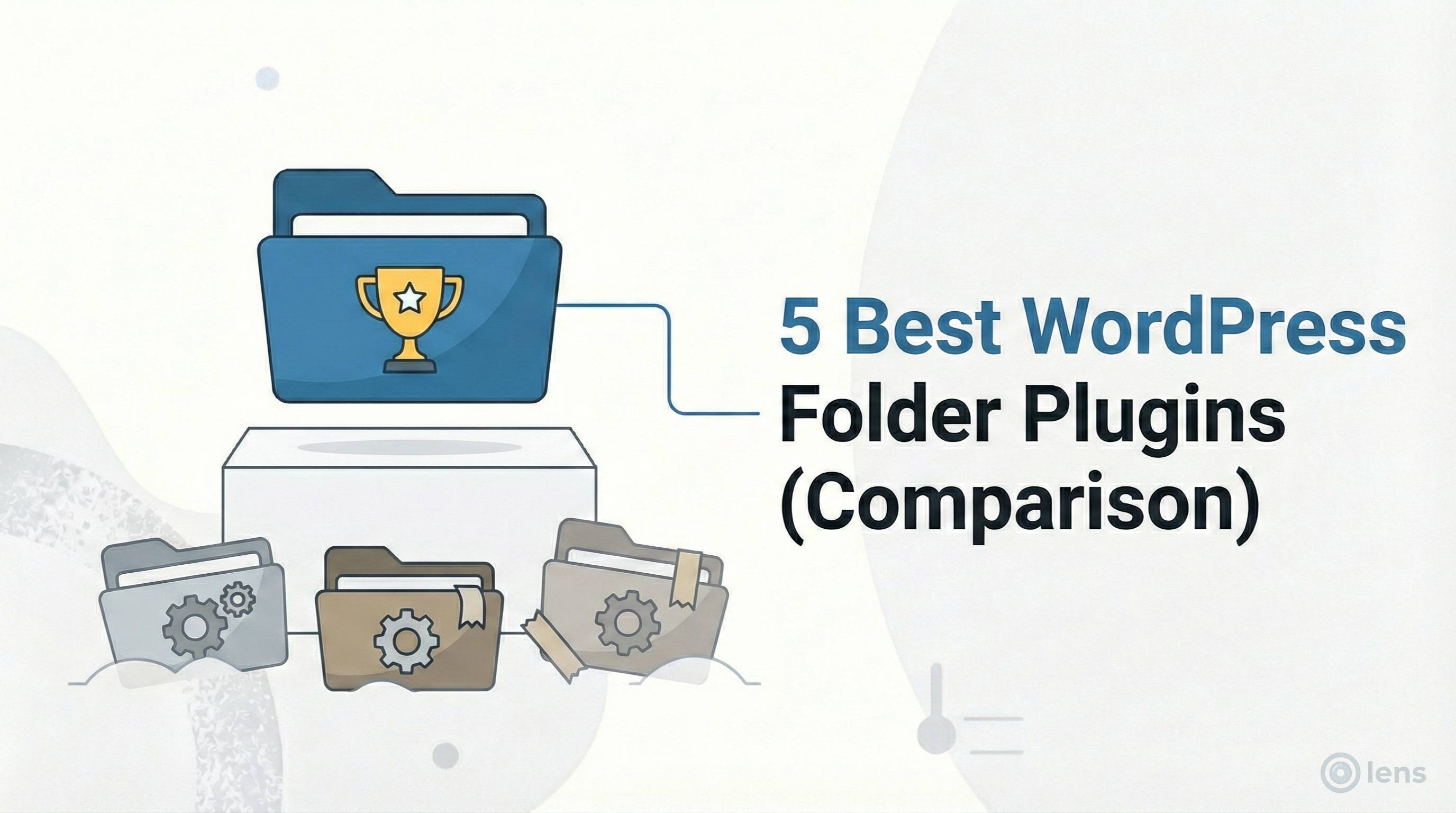
Part 3: Popular Options Compared
Here's an honest overview of the main WordPress folder plugins available in 2025. Features and pricing may change, so we recommend checking each plugin's official website for current information.
Quick Reference Table
| Plugin | Free Version | Folder Type | Notable Strengths |
|---|---|---|---|
| FileBird | Unlimited folders | Virtual | Large community, many integrations |
| Real Media Library | Unlimited main folders (no subfolders) | Virtual | Feature-rich pro version, collections |
| Folders (Premio) | Unlimited folders (no subfolders) | Virtual | Post type support, colorful UI |
| HappyFiles | Premium only | Virtual | Clean code, lifetime pricing |
| Lens | Unlimited folders & subfolders | Virtual | Modern UI, extensive feature set |
FileBird
Developer: Ninja Team · View on WordPress.org
FileBird is one of the most established folder plugins with a large user base. The free version offers unlimited folders following WordPress.org guidelines changes in 2021. The interface uses a familiar file explorer style that many users find intuitive.
Good for: Users who want a well-tested solution with broad third-party compatibility.
Consider: Some advanced features require the pro version. Check current pricing on their official site.
Real Media Library
Developer: devowl.io · View on WordPress.org
Real Media Library offers a robust free version with unlimited main folders. The pro version adds subfolders, collections, shortcuts, and gallery features. It's known for comprehensive functionality.
Good for: Users who need advanced media management features and don't mind paying for premium.
Consider: The interface has more options, which means a slight learning curve.
Folders (Premio)
Developer: Premio · View on WordPress.org
Premio's Folders plugin stands out with its colorful interface and support for organizing posts, pages, and custom post types—not just media. The free version allows unlimited folders but restricts subfolders to pro.
Good for: Users who want to organize content beyond just media files.
Consider: The full experience requires the pro version for multilevel subfolders.
HappyFiles
Developer: Thomas Ehrig · Visit Official Site
HappyFiles is known for clean, minimal code and good performance. Note that as of 2022, HappyFiles is premium-only—there's no longer a free version on WordPress.org. The lifetime pricing model ($59 for unlimited sites) makes it economical for developers.
Good for: Developers who value code quality and want lifetime access.
Consider: No free version available to test before purchasing.
Lens
Developer: Lens Team (that's us) · View on WordPress.org
Lens is designed with a modern interface and aims to provide comprehensive features including unlimited nested folders in the free version. We've built features like auto-organization, keyboard shortcuts, folder sharing, and REST API support.
Good for: Users looking for a modern interface with advanced features.
Consider: Newer to the market, smaller community.
Quick Verdict: Which Plugin Should You Choose?
Lens
If you want one plugin that covers all bases, Lens offers the most comprehensive feature set available in a free WordPress folder plugin:
- Unlimited folders and subfolders (free)
- Auto-organize existing media in one click
- Bulk operations with live progress tracking
- Keyboard shortcuts & command palette (Cmd/Ctrl+K)
- Folder sharing with access control
- Password-protected folders
- REST API for integrations
- Undo/redo, favorites, folder colors
Other plugins excel in specific areas, but often require paid upgrades for features Lens includes free.
Try Lens FreePart 4: Making Your Decision
Step 1: Assess Your Current Situation
Before choosing a plugin, answer these questions:
- How many media files do you have? Under 500, most plugins work fine. Over 5,000, performance becomes more important.
- Do you need subfolders? If yes, check which plugins offer this free vs. paid.
- Do you need to organize posts/pages too? Not all plugins support this.
- What page builder do you use? Test compatibility with Elementor, Divi, etc.
- Is this for a multi-author site? Consider permission features.
Step 2: Try Before You Commit
Most plugins offer free versions or trials. We recommend:
- Install the free version on a staging site first
- Create your intended folder structure
- Test with your page builder's media modal
- Try bulk operations with a realistic number of files
- Check how search works within folders
Step 3: Consider Long-Term Factors
- Update frequency: Check when the plugin was last updated. Active development matters for security and compatibility.
- Support quality: Read recent support forum threads to gauge responsiveness.
- Migration path: Some plugins can import folder structures from others, making switching easier if needed.
Common Mistakes to Avoid
1. Choosing Based on Install Count Alone
Popular plugins have more users, but that doesn't mean they're the best fit for your needs. A newer plugin might have better features or performance.
2. Not Testing Page Builder Compatibility
Some folder plugins work great in the main media library but don't appear in Elementor, Divi, or other page builder modals. Always test this specific scenario.
3. Ignoring Free Version Limitations
A "free" plugin with key features locked behind a paywall may cost more long-term than a reasonably-priced premium option. Understand what you're getting.
4. Not Planning for Growth
Your media library will grow. Choose a plugin that performs well with larger libraries, not just your current size.
About Lens: Our Approach
Since we make Lens, we want to be transparent about what we offer and why we built it. We're not claiming to be the only good option—the plugins mentioned above all have merits. Here's what makes Lens different:
What We Set Out to Solve
When we reviewed existing folder plugins, we found that many were limited in their free versions, making it difficult to properly organize a WordPress media library without paying. Others felt dated or lacked features we considered essential for modern workflows.
We built Lens to provide a comprehensive free version with unlimited nested folders, while adding advanced features for power users.
Lens Features Overview
Core Organization
- Unlimited Folders: Create unlimited nested folder structures with no restrictions in the free version.
- Drag, Copy & Clipboard Moves: Move and copy media with drag-and-drop and safe clipboard operations.
- Explorer & Tree View: Navigate your media with a clean folder tree and visual explorer.
- Folder Colors: Add color-coded folders and visual tags for better organization.
- Favorites: Pin frequently-used folders for quick access.
Productivity Features
- Auto-Organize: Automatically sort your existing media library in one click based on criteria you choose.
- Instant Search: Find files across all folders and metadata quickly.
- Bulk Operations: Manage hundreds of files at once with live progress tracking.
- Keyboard Shortcuts: Customizable shortcuts for faster navigation.
- Quick Switch (Cmd/Ctrl + K): Command palette for lightning-fast navigation.
- Undo & Redo: Quickly reverse any action while organizing.
Advanced Capabilities
- Share & Collaborate: Share folders with analytics tracking and access control.
- Lock Folders: Password-protect folders and hide media from public access.
- Role & User Permissions: Granular control over who can create, move, lock, or share folders.
- Import & Export: Compress folders to ZIP, extract archives, and migrate your organization.
- Move to Trash: Safe deletion with trash management and recovery options.
Integration & Compatibility
- Post & WooCommerce Media Manager: Access folders from post, page, or product editors.
- REST API: Integrate with external applications using secure API keys.
- Multisite-Ready: Clean installs and complete network cleanup on uninstall.
- CDN & Cloud Compatibility: Works with CDN and offload plugins without configuration.
- Compression & Extraction: Bundle folders into ZIP files or extract uploads directly.
For the complete feature list with details, visit our features page.
Try Lens Free
Download the free version from WordPress.org and see if it fits your workflow. No credit card required, no folder limits.
Download Free VersionConclusion
Choosing a WordPress folder plugin comes down to matching features with your needs. All the plugins mentioned in this guide are legitimate options with their own strengths.
If you're just getting started and want something free with no limitations, look at plugins that offer unlimited folders in their free versions. If you need advanced features like folder sharing, detailed permissions, or auto-organization, compare the premium offerings.
The best approach is to install a free version on a test site, create your folder structure, and evaluate the experience before committing. Most folder plugins are easy to switch between thanks to import tools, so you're not locked in forever.
Whatever you choose, organizing your media library is worth the effort. Finding the right image in seconds instead of minutes will save you hours over the lifetime of your WordPress site.