Table of Contents
SEO professionals obsess over every detail of a website, and rightly so. But when it comes to WordPress media, there is a lot of confusion. Does putting your images into a folder named /best-marketing-tips/ actually help you rank for "Best Marketing Tips"?
The short answer is: Barely.
The long answer is: Organization doesn't help directly, but it creates the workflow that makes SEO possible. Let's break down what actually matters for image SEO in 2025 and how smart organization amplifies your efforts.
The URL Path Myth
In the early days of SEO, having keywords in your file path (e.g., /wp-content/uploads/folders/blue-widgets/widget.jpg) was a ranking signal. Today, Google's algorithm is far more sophisticated.
Google cares primarily about the content of the image and the context of the page it is embedded in. The URL path is a very minor signal. Breaking your site architecture just to stuff keywords into folder names is often a waste of time—and potentially dangerous.
Why Physical Folders Can Hurt SEO
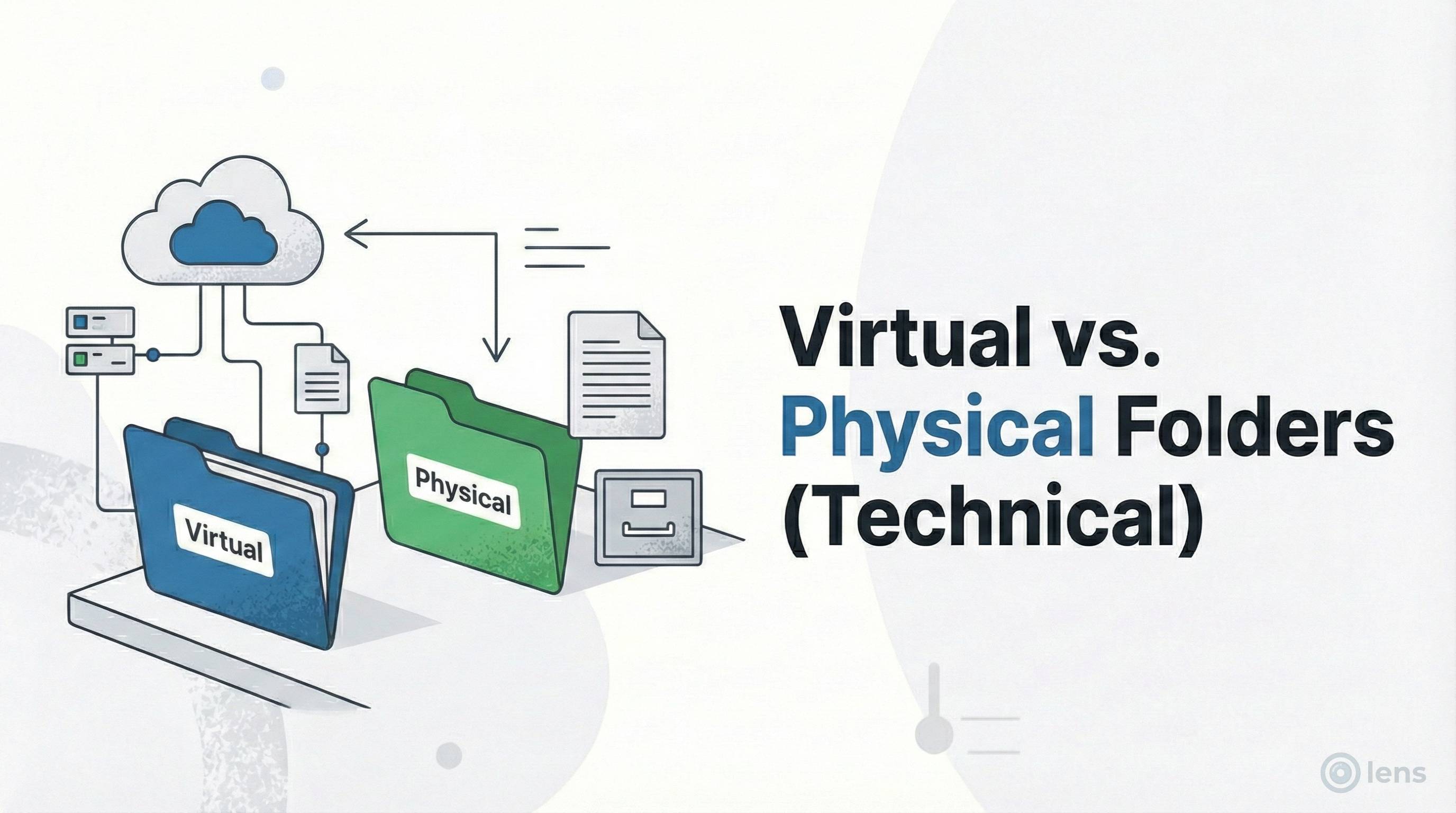
Some plugins offer "physical" folders that actually move your files to keyword-rich paths. This sounds great until:
- Broken backlinks: Every external site linking to your old image URL now hits a 404.
- Lost social shares: Pinterest pins, Facebook posts, and tweets with your images break.
- Redirect overhead: Even with 301 redirects, you add latency and lose some link equity.
- CDN cache invalidation: Your CDN has to re-cache everything at new URLs.
The minimal SEO gain from a keyword in the path is vastly outweighed by these risks. This is why virtual folder plugins like Lens are the safer choice.
What Google Actually Cares About
If folder names don't matter much, what does? According to Google's own image SEO documentation, image search ranking is driven by:
1. Alt Text (Most Important)
Alt text is the #1 signal for image SEO. It tells Google what the image depicts and helps screen readers describe images to visually impaired users.
Good alt text: "Red Nike Air Max running shoes on white background"
Bad alt text: "shoes" or "IMG_4521" or (worst) empty
Tips for writing effective alt text:
- Be specific and descriptive (8-15 words is ideal)
- Include your target keyword naturally, but don't stuff
- Describe what's actually in the image
- Skip phrases like "image of" or "picture of"—it's redundant
2. File Name
blue-widget.jpg is significantly better than IMG_9921.jpg. Google reads file names as a content signal.
Best practices:
- Use hyphens between words (not underscores)
- Keep it descriptive but concise
- Include relevant keywords
- Rename files BEFORE uploading to WordPress
3. Page Context
An image of a dog on a page about cat food is confusing to Google. The surrounding text, headings, and page topic all influence how Google interprets your image.
For best results:
- Place images near relevant text content
- Use descriptive captions when appropriate
- Ensure the page topic aligns with image content
4. Image Quality and Format
Google favors high-quality, properly-sized images in modern formats:
- WebP: 25-35% smaller than JPEG at equivalent quality. Use this as your default.
- AVIF: Even better compression, but less browser support.
- JPEG: Still fine for photos if WebP isn't an option.
- PNG: Only for images requiring transparency.
- SVG: Perfect for logos, icons, and illustrations.
5. Page Speed (Core Web Vitals)
Large, uncompressed images are the #1 cause of slow WordPress sites. Google's Core Web Vitals directly impact rankings:
- LCP (Largest Contentful Paint): Often determined by your hero image. Optimize it.
- CLS (Cumulative Layout Shift): Always specify width and height attributes to prevent layout shifts.
The Hidden SEO Benefits of Folders
So if "virtual folders" (like those in Lens) don't change the URL, how do they help SEO? By fixing your workflow.
When your media library is a chaotic mess of 5,000 images, you get lazy. You upload duplicates. You skip adding Alt Text because you're in a rush. You leave file names as screenshot-1.png.
Organization leads to optimization. Here's how:
Workflow Psychology
A clean, organized workspace encourages careful work. When you see a tidy folder structure, you're more likely to:
- Take 30 seconds to write proper alt text
- Notice that an image is missing metadata
- Rename a file before uploading
- Delete unused duplicates
Chaos breeds more chaos. Organization breeds optimization.
Why Organization Leads to Better Alt Text
Imagine you have a folder in Lens called "Product > Shoes". You open that folder and see 50 shoe images. It is immediately obvious which ones are missing metadata—they'll have generic titles like "IMG_4521" instead of "Nike Air Max Blue".
With a clean interface, you are psychologically more likely to take the time to click an image and add descriptive Alt Text. You can bulk-select images in a specific folder and realize, "Wait, these all have terrible file names," and fix them for future uploads.
The Folder Audit Technique
Use folders to systematically audit your image SEO:
- Create a folder called "Needs SEO Review"
- When uploading, if you're in a rush, drop images there
- Schedule 30 minutes weekly to go through that folder
- Add alt text, rename files, compress images
- Move optimized images to their proper folders
This ensures no image goes live without proper optimization.
Removing Dead Weight
Site speed is a massive ranking factor. A disorganized library is often full of unused, heavy images that are slowing down your backups, migrations, and sometimes even page loads (if they're being lazy-loaded).
How Clutter Hurts You
- Larger backups: Every unused 5MB image is backed up daily. That adds up.
- Slower migrations: Moving to a new host takes longer with bloated media libraries.
- Database bloat: Each attachment creates multiple database entries (post, postmeta, thumbnails).
- Confused content teams: Writers waste time scrolling past irrelevant old assets.
The Folder Cleanup Strategy
By using folders to sort "Active Assets" from "Old Banners," you can confidently delete gigabytes of junk:
- Create an "Archive" folder for anything older than 2 years
- Create a "Delete Review" folder for suspected unused files
- Use a plugin to identify truly unused images
- Delete the confirmed unused files
- A lighter site is a faster site, and a faster site ranks better
The Duplicate Image Problem
Disorganized libraries lead to duplicate uploads. When users can't find an image, they upload it again. This causes:
- Wasted storage: You're paying for the same image multiple times.
- Inconsistent alt text: The same image might have great alt text in one place and none in another.
- Cannibalized rankings: Multiple pages with the same image but different metadata can confuse Google.
Folders solve this by making assets findable. If everyone knows the logo is in "Brand > Logos," nobody re-uploads it.
The Media SEO Checklist for 2025
To dominate image search, follow this workflow for every image you upload:
Before Upload
- Rename the file: Use descriptive, hyphenated names on your computer before uploading.
- Compress the image: Use tools like Squoosh, TinyPNG, or ShortPixel to reduce file size.
- Convert to WebP: If your site supports it (most do in 2025), convert to WebP format.
- Right-size dimensions: Don't upload a 4000px image if it displays at 800px.
During Upload
- Upload to the correct folder: Drag the file into the correct Lens folder so you never lose it.
- Add Alt Text immediately: Write a descriptive sentence about the image. Don't skip this.
- Set the title: If the auto-generated title is generic, update it.
- Add caption if needed: For images that will display with visible captions.
After Upload
- Verify it appears correctly: Check the page where you inserted the image.
- Test page speed: Ensure the image isn't hurting your Core Web Vitals.
- Check mobile display: Verify the image looks good on mobile devices.
Start organizing for SEO
Don't let a messy library hurt your rankings. Use Lens to keep your assets clean, accessible, and ready for optimization.
Get Lens Free